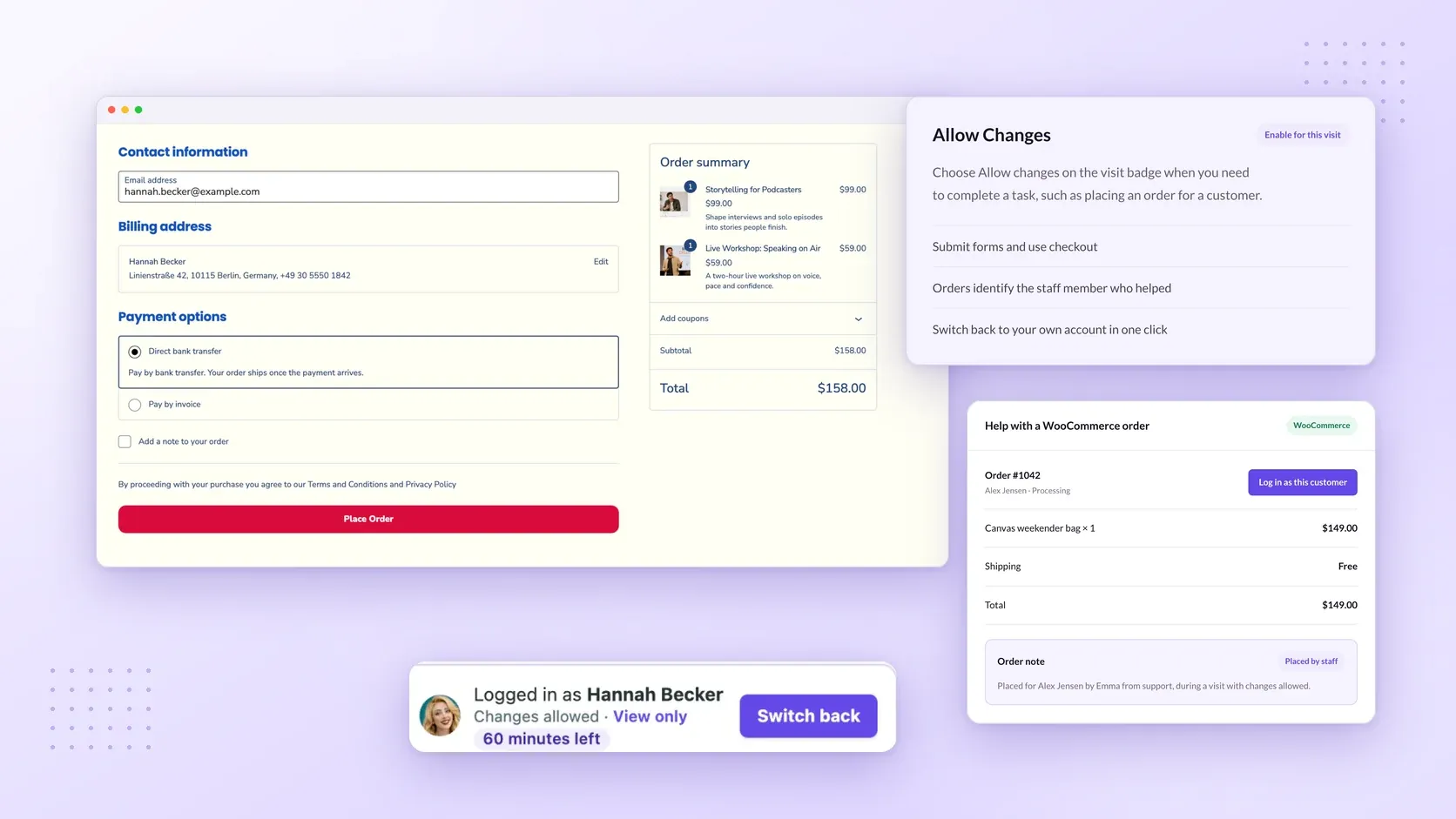
To place an order for a customer, either assemble it in your WooCommerce dashboard and arrange payment afterward, or help them select products and complete the purchase through their checkout. For phone orders, the checkout route lets you help with the shopping itself. It’s the main workflow covered here for WooCommerce assisted orders.
Before creating a manual order in the dashboard, make sure you have an Administrator or Shop Manager account and that tax rates are configured. See WooCommerce’s manual-order documentation.
For assisted shopping, Superb Login As User lets administrators visit eligible customer accounts. Additional roles, such as shop managers, need permission, and protected staff accounts remain off limits.
Create a manual order in your WooCommerce dashboard
Create a manual WooCommerce order by entering the details in your dashboard and saving the order for payment afterward.
- Open WooCommerce > Orders > Add order and enter the customer’s details.
- Add products, coupons, and fees as needed.
- Use Add shipping to add a shipping charge, then use its edit control to set the name, method, cost, and tax.
- Calculate the totals. Recalculate uses your store settings and the customer’s address to update taxes, overwriting any manual tax adjustments. Select Pending payment if payment remains outstanding, then save the order.
These steps follow WooCommerce’s manual-order procedure. Saving an unpaid order doesn’t collect payment. To collect payment for a manual WooCommerce order, see the checkout section below for details on payment links.
Start a phone order through your customer’s account
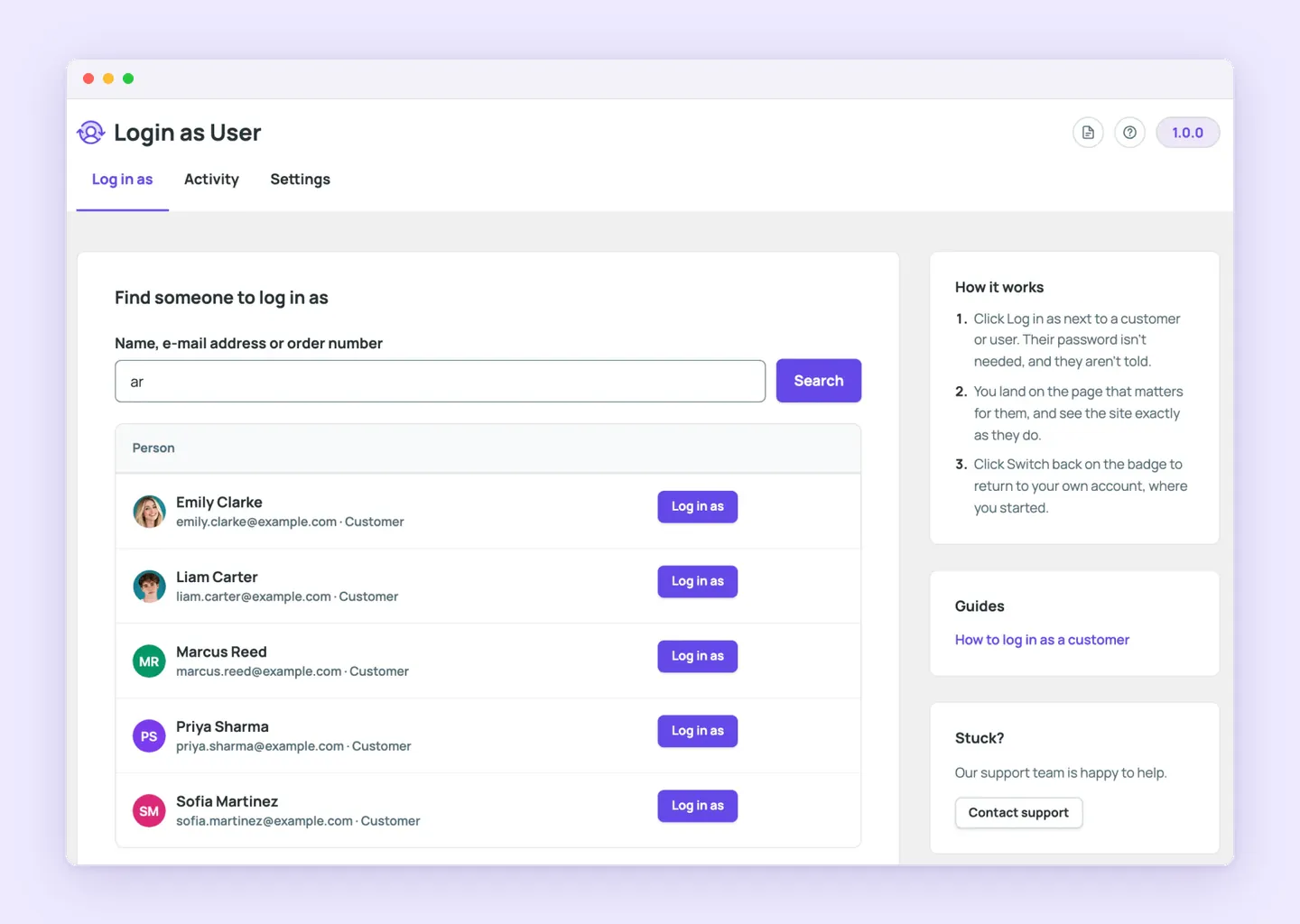
For WooCommerce phone orders, help the customer choose products in your storefront, then complete checkout through their account.
- Find the customer from the Users list, a profile, a WooCommerce order, or the admin bar. Search by name, email address, or order number.
- Select Log in as to start the visit. You enter with the customer’s permissions in view-only mode, which blocks forms, orders, and checkout changes. The next step enables forms and checkout for this visit.
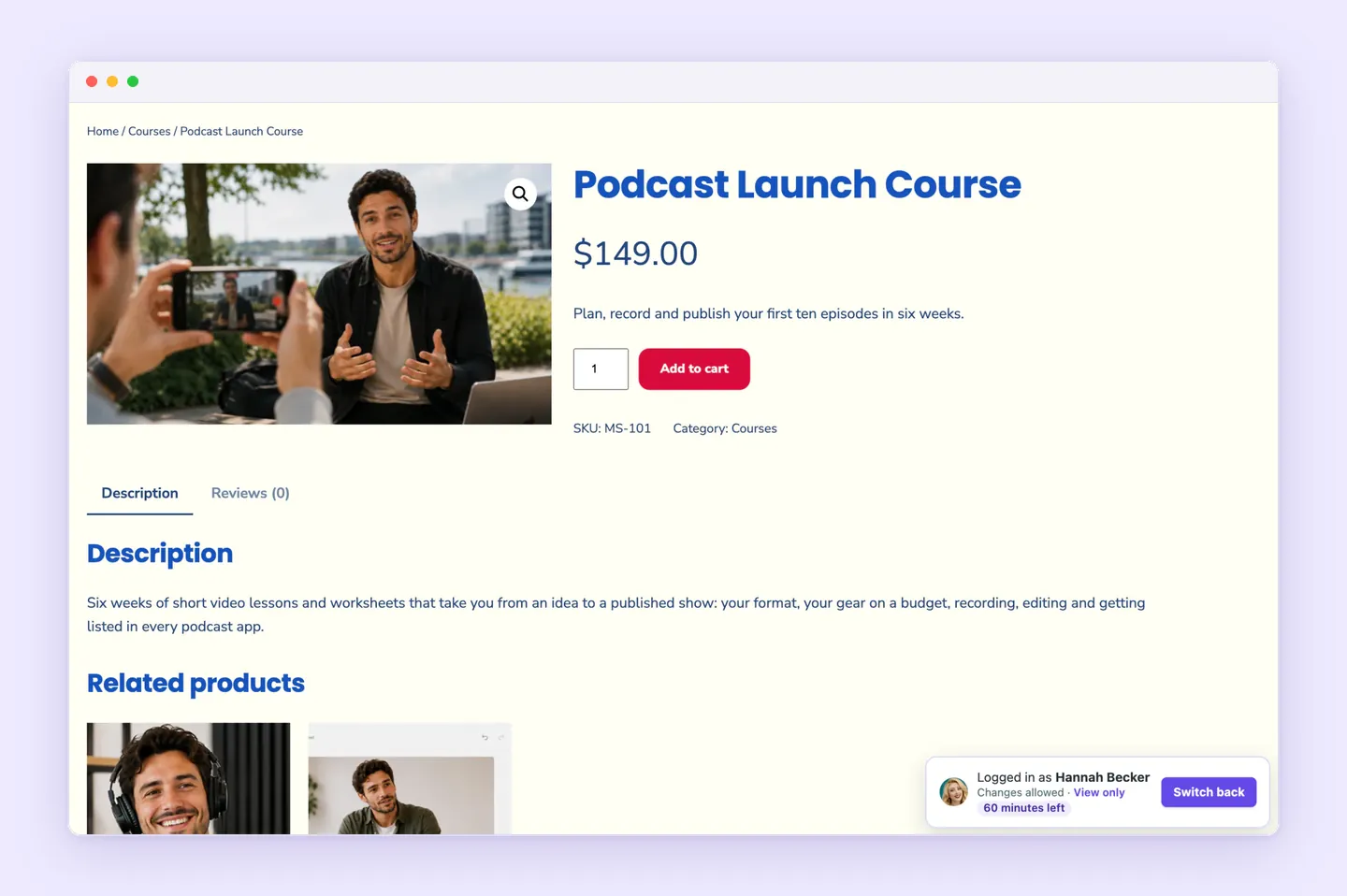
- Choose Allow changes on the visit badge.
- Browse your storefront and add the products and quantities the customer requests. Once their selections are in the cart, proceed to the customer’s checkout.
Check totals, collect payment, or send a payment link
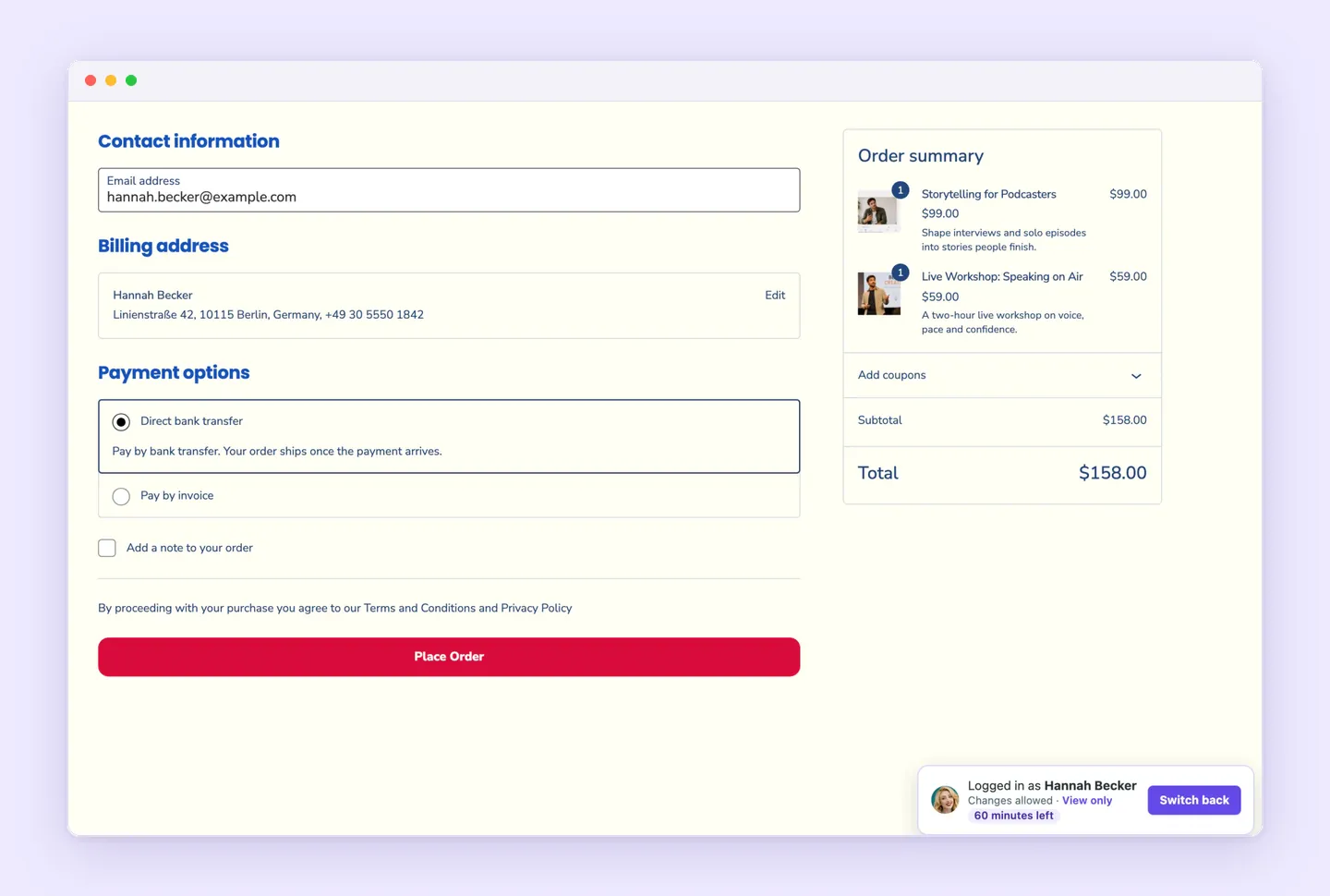
Review the delivery details and amount due with the customer before submitting the order.
- Check the customer’s delivery address. Review the available shipping choices and confirm the selected option and shipping charge with them.
- Review the displayed tax and final total with the customer before proceeding with payment.
- Collect payment using an appropriate method available in your store’s checkout. Saved customer payment methods remain protected and unavailable during visits, so you can’t use them to complete the purchase.
- If the customer needs to pay later, use a payment link for an eligible unpaid order. To send a WooCommerce payment link, copy the Customer payment page → link from the administrator’s order screen and share it with the customer. Draft and Pending payment orders support this route. For an account-assigned order, the assigned customer must log in before paying through the link. See WooCommerce’s payment guidance.
- After submitting the order, check its confirmation and payment status. WooCommerce sends its usual order emails. An order confirmation alone doesn’t confirm successful payment. Check the payment status before telling the customer the order is paid.
Review staff attribution and restore the customer’s cart
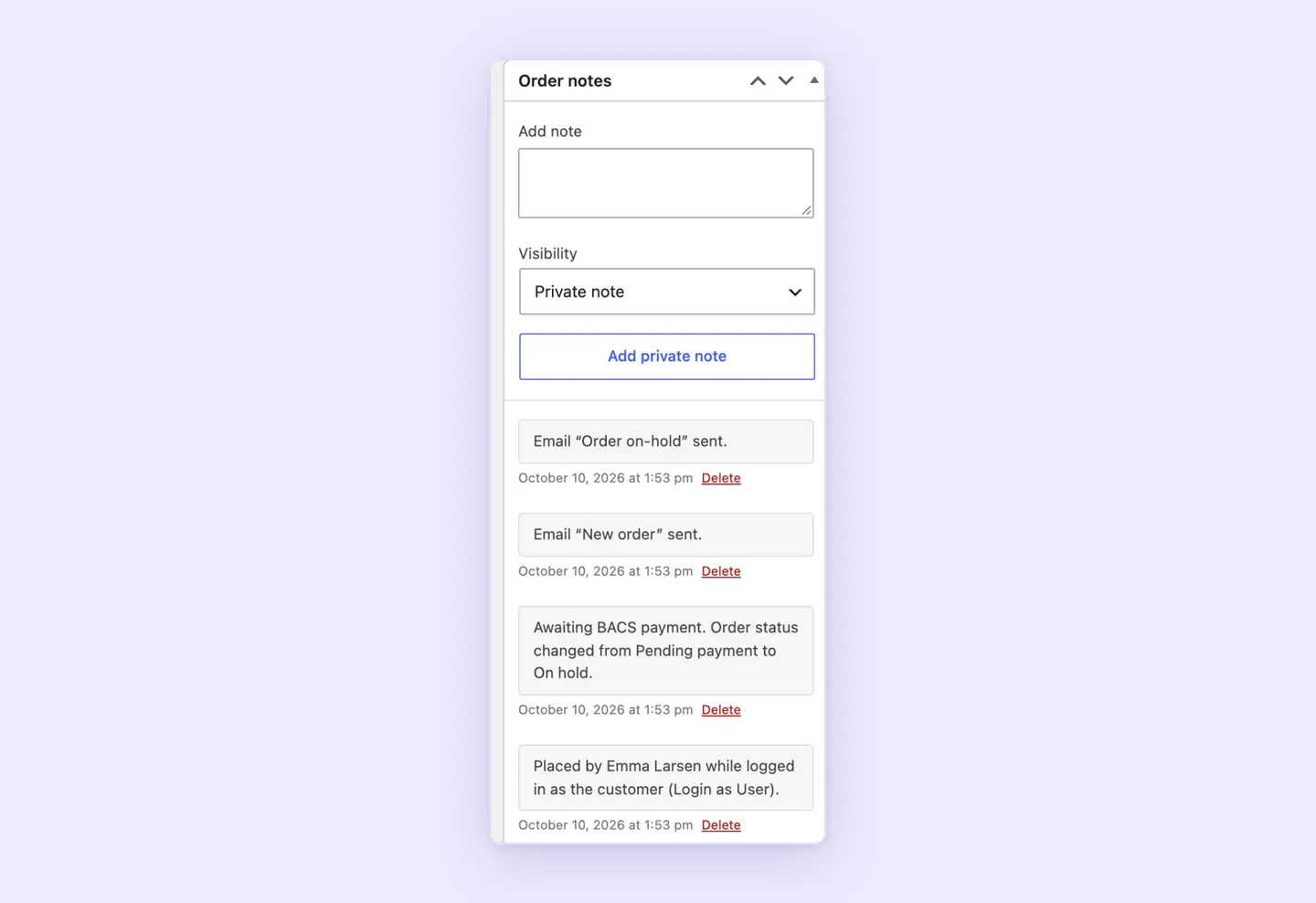
Before ending your visit, check which staff member is recorded on the order and what will happen to the customer’s cart.
- Check the order’s staff attribution. Orders placed during visits record which staff member placed them, so you can confirm that your assistance is recorded.
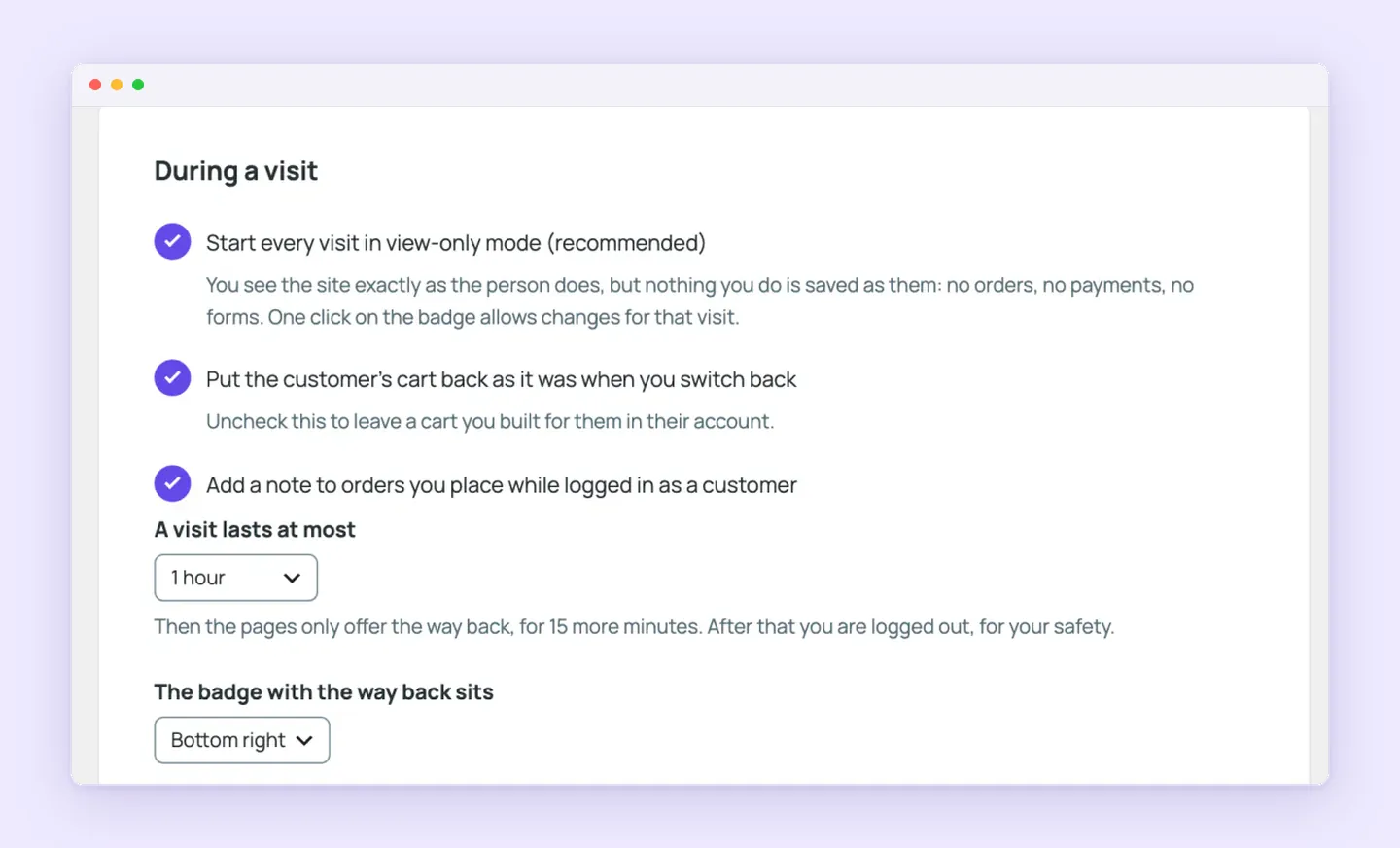
- Decide whether to restore the cart or leave it prepared. Customer cart restoration is enabled by default when you switch back. Disable it if you intend to leave a prepared cart for the customer. If the customer used the site during your visit, their cart is left alone, and the activity list records that.
- Select Switch back to return to your staff account and starting screen. Logging out instead ends access to both the customer’s account and your own account.
When to choose Superb Login As User for assisted shopping
Choose Superb Login As User when you want to help a customer shop and place an order through their own checkout, provided your staff have permission to visit the account and your store has a suitable way to collect payment. If creating an order for the customer to pay later better fits the request, use WooCommerce’s built-in dashboard method.
Review it on the Superb Login As User product page to decide whether it suits your store.